
Best PDF Tagging Software for 2026
Tagged PDFs are the difference between a document a screen reader can handle and one it reads as a blank page. If you're managing a backlog of hundreds or thousands of files, the tool you pick will determine whether you hit your compliance deadline or miss it. Here are the 10 best PDF tagging software options right now, and who each one is actually for.
Table of contents
- Accessibility On Demand™ — automated tagging at backlog scale
- Adobe Acrobat Pro DC — built-in autotagging
- CommonLook PDF — professional remediation suite
- PDFix Desktop Pro — specialist-focused tool
- PDFix Desktop Enterprise — batch processing power
- PDFix Desktop Lite — free audit utility
- Crawford Technologies ad hoc tagging tool
- Equidox — cloud HTML conversion solution
- Apryse SDK — developer-centric tagging
- axes4 (axesWord & axesPDF) — lightweight tagger
- How to choose the right PDF tagging software
- FAQ
- Conclusion
1. Accessibility On Demand™ — automated tagging at backlog scale
Full disclosure first: Accessibility On Demand™ is our platform. We are putting it at the top of our own list, so here is exactly where it fits and where it does not. Accessibility On Demand™ (AoD™) is the only PDF remediation platform built to remove the human remediator from the workflow entirely, not just speed one up. It handles scanned documents, digitally born PDFs, and complex layouts through automation, and it's the platform we use and stand behind for any organization facing a large backlog.
Pricing is published and tiered by page. Standard (Level 1) is $0.30 per page, for text-based PDFs and archives. Enhanced (Level 2) is $1.80 per page and targets a 95%+ WCAG 2.1 AA Compliance Score, verified by the PAC (Axes4) checker; if a document doesn't clear 95%, you're not charged for it. Expert Review (Level 3) is $12 per page, adds expert human review, and targets a 99% Compliance Score on the same PAC (Axes4) checker — full WCAG 2.1 AA + PDF/UA, human-verified. Every processed document gets a compliance certificate scored by the PAC (Axes4) checker. A PAC score is computed, not asserted: checks passed divided by checks run, per standard. It is the independent checker's number, not ours.
The caveat: AoD™ is a service platform, not a desktop tool. If your team needs hands‑on manual control over individual tag trees, the workflow is different from a local editor like PDFix. But for clearing backlogs of tens of thousands of pages, no other option on this list publishes both throughput capacity and per‑page pricing together. The free trial covers your first 100 Standard pages, enough to see the output quality before committing.
Key Takeaway: AoD™ is the only tool on this list that discloses batch throughput at high‑volume scale alongside transparent per‑page pricing and PAC (Axes4) validation on every file.
2. Adobe Acrobat Pro DC — built-in autotagging
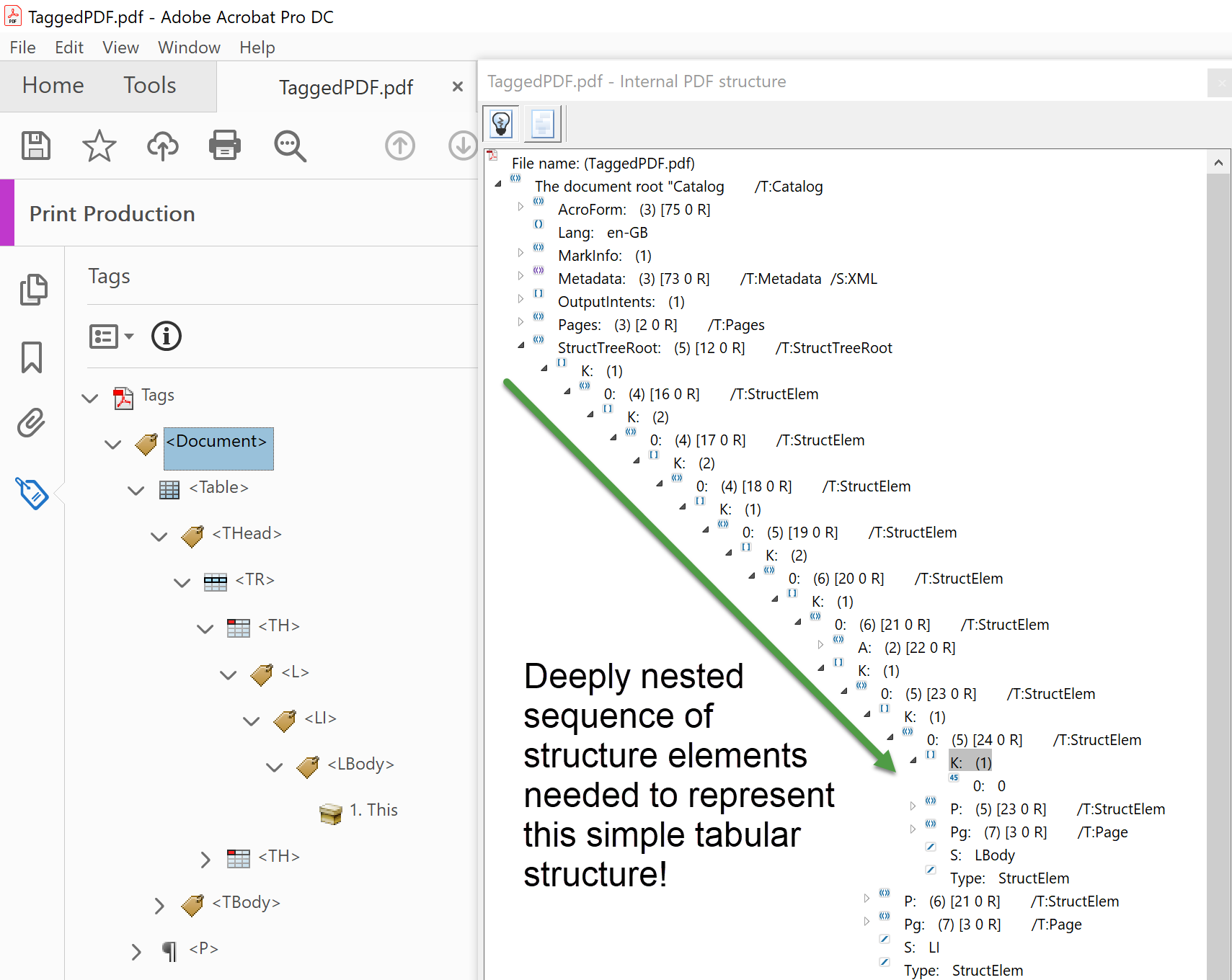
Adobe Acrobat Pro DC is the most widely used PDF editor in the world, and it has four distinct paths to tagging: the Reading Order tool for manual drag-and-drop tagging, Create Tag from Selection for precise placement, the Guided Actions wizard (formerly the Make Accessible Action Wizard), and a cloud-based API autotagging option you enable under Preferences > Accessibility.
The cloud-based autotagger produces noticeably better structure than the local Guided Actions wizard. As accessibility educator Shawn Jordison demonstrated, the cloud API correctly tagged a table of contents, headings, and table rows in a single pass, while the wizard left heading hierarchy issues that needed manual correction. One real limitation: Adobe's autotagger can produce heading level gaps (an H1 followed directly by an H3, with no H2), which fails WCAG 2.1 Success Criterion 1.3.1 on information and relationships. Also, the Reading Order tool cannot tag list items or links — those require the tags panel directly.
Adobe does not publish per-page pricing for remediation work, which makes budgeting for large backlogs difficult. It's the right choice when your team already owns licenses and needs a capable manual editor for moderate volumes.
3. CommonLook PDF — professional remediation suite
CommonLook PDF is the go-to tool for remediation experts who need precise control over complex tag structures. It runs as a plugin inside Adobe Acrobat Pro DC and is widely used in US federal agencies and large enterprises. The standout feature is its keyboard-driven tag tree navigation: Ctrl+Shift+1 through 6 converts any selected tag to an H1 through H6 instantly, and Ctrl+Shift+Up/Down moves tags in the tree without touching a mouse.
For remediating PowerPoint-sourced PDFs with dozens of misplaced section tags, that speed matters. CommonLook also lets you select multiple tags in the order you want them read, then reposition them in one drag, a workflow that Acrobat's tag panel doesn't support cleanly.
The limitation is dependency: CommonLook requires an active Adobe Acrobat Pro DC license, which adds cost. It's best for accessibility experts and compliance teams doing hands-on remediation, not for organizations that need to automate batch runs without human intervention. If your team is working through complex government or legal documents one by one, CommonLook is hard to beat on speed and control.
4. PDFix Desktop Pro — specialist-focused tool
PDFix Desktop Pro is purpose-built for accessibility specialists and compliance teams who want automated autotagging without cloud dependency. It runs natively on Windows, macOS, and Linux, which makes it the only desktop remediation tool that covers all three platforms at no extra cost. Pricing is €350 per user per year (or $599 for US customers).
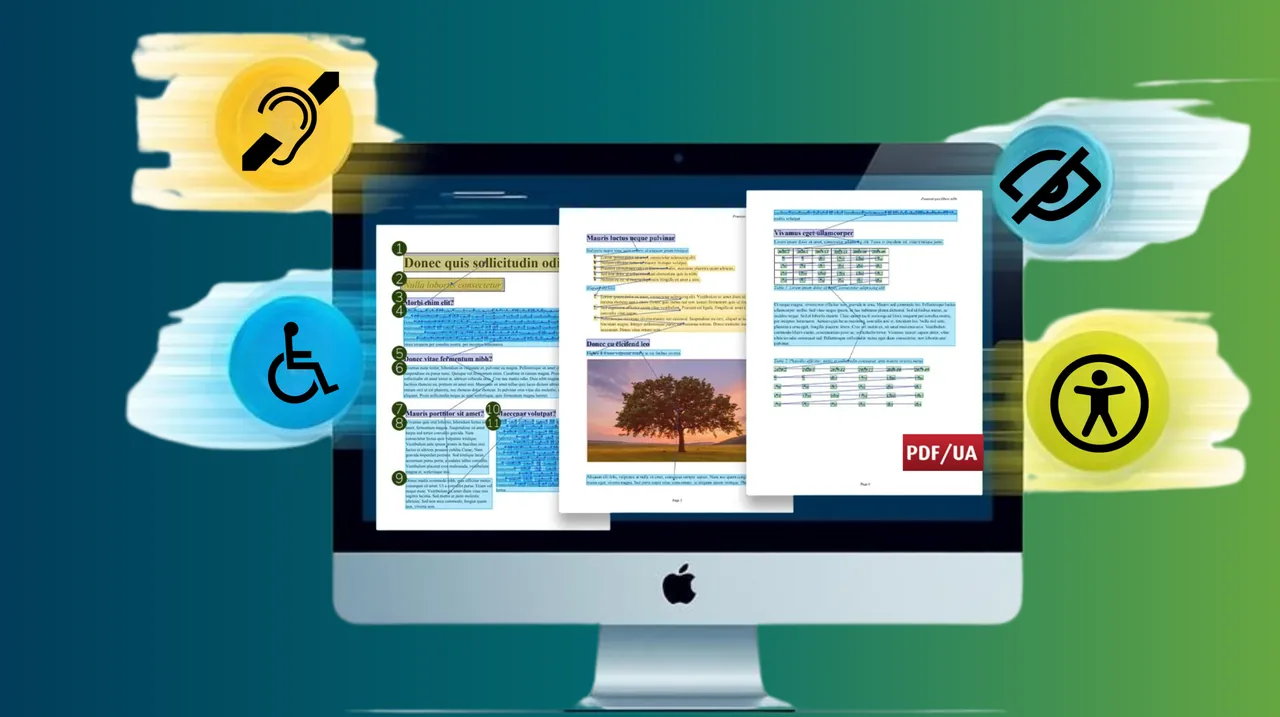
The Pro tier adds autotagging, full PDF remediation, table and list structure editing, reading order management, and layout template configuration on top of the free Lite checker. The validation engine is built in, supporting PDF/UA (ISO 14289), WCAG 2.1 and 2.2, Section 508, and the European Accessibility Act. One thing to know: documents saved with the free trial version carry a watermark. You need a paid license to produce clean output for distribution.
PDFix Desktop Pro is the right fit for a team remediating up to 50 documents per project who need on-premises processing and cross-platform support. For organizations needing to process hundreds or thousands of files per week, the Enterprise tier is the more usable choice.
5. PDFix Desktop Enterprise — batch processing power
PDFix Desktop Enterprise adds batch processing and a Workflow Builder on top of everything in Pro. It's designed for organizations remediating more than roughly 50 documents per week. PDFix's own case studies show Jefferson County, Texas processing a high volume of pages using PDFix SDK with 90%+ compliance, fully on-premises. Slovak Technical University automated 65%+ of its academic PDF remediation with 70% less manual work.
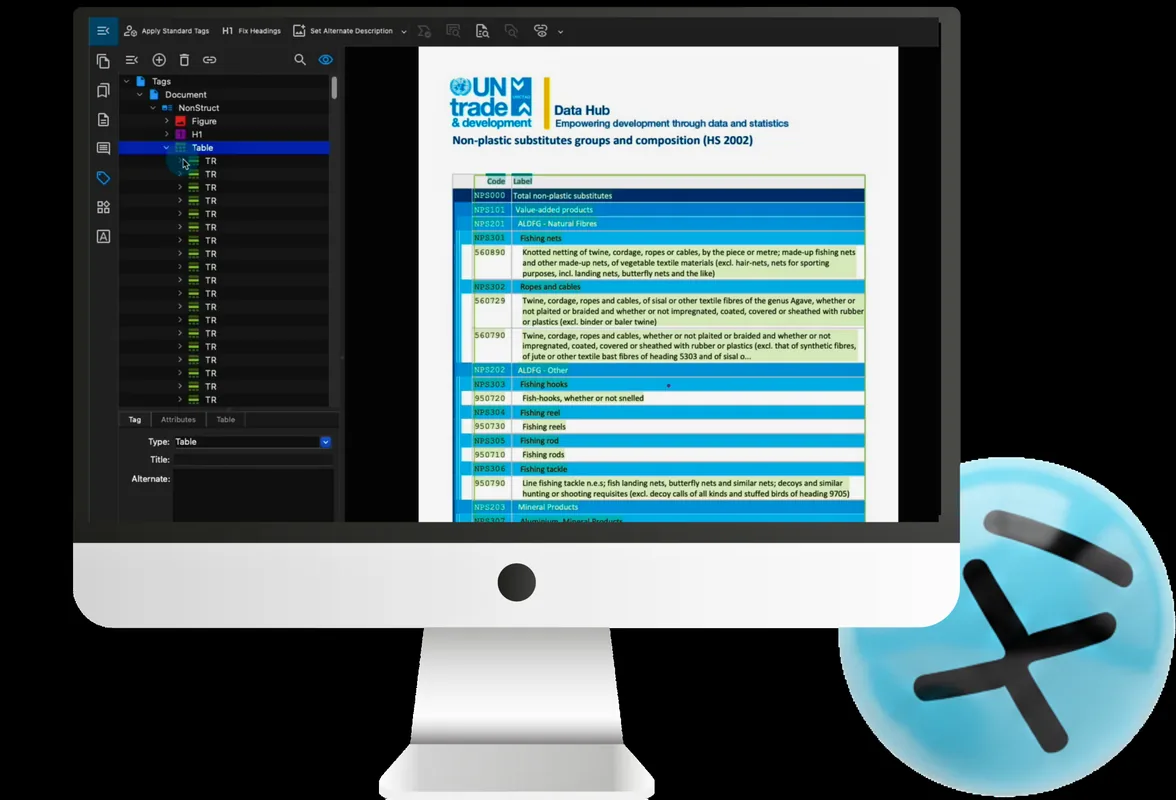
The Enterprise tier supports template-based tagging, where you define a JSON layout template once for a recurring document type (bank statements, government forms, invoices) and apply it to thousands of files in a single batch run. That approach delivers consistent output quality at scale, which matters when a compliance audit checks document structure across an entire archive rather than individual files. Verification support covers PDF/UA (ISO 14289), WCAG 2.1 and 2.2, Section 508, and the European Accessibility Act.
The trade-off compared to Accessibility On Demand™ is that Enterprise still requires your team to configure templates and manage the batch workflow. It's powerful on-premises automation, but it's not a hands-off service. Volume pricing is available on request.
Pro Tip: If your document set includes recurring layouts like monthly reports or standardized forms, PDFix's JSON layout templates can eliminate per-document setup entirely — one template, consistent PDF/UA output across thousands of files.
6. PDFix Desktop Lite — free audit utility
PDFix Desktop Lite is a permanently free PDF accessibility checker with no registration, no time limit, and no credit card required. It includes built‑in validation that supports PDF/UA‑1 and UA‑2, WCAG 2.1 and 2.2, Section 508, ADA Title II, and the European Accessibility Act.
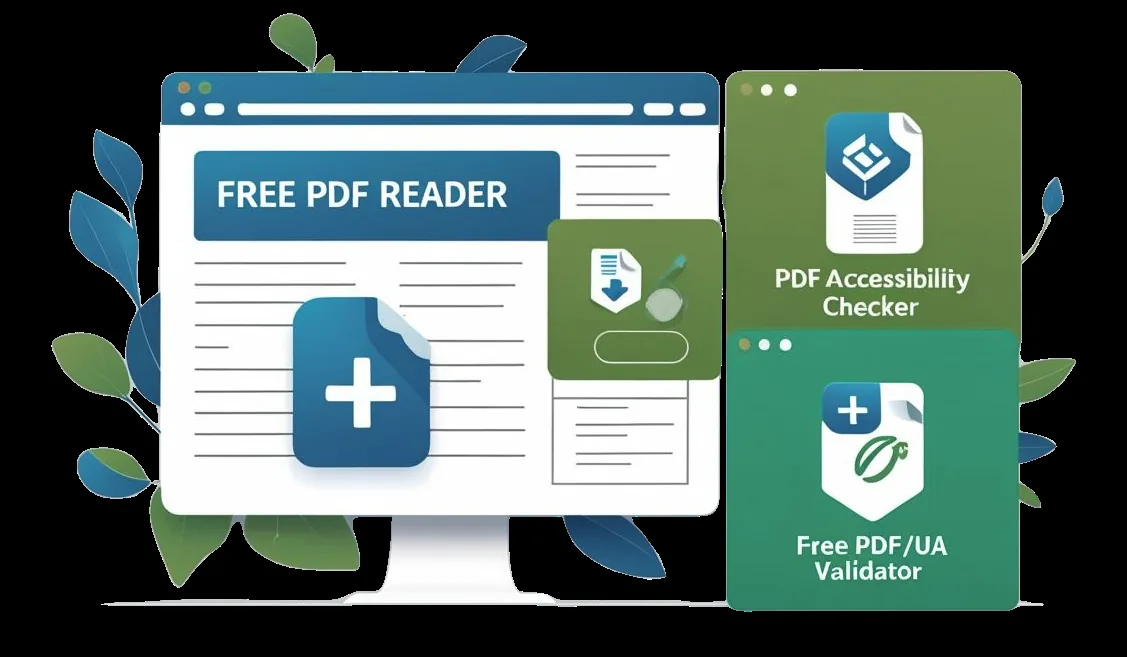
The 2026 version added full-folder batch validation: drop a folder into the Application Dashboard, click validate, and the validator runs across every document at once. Each file shows its status, errors with exact locations, and a Fix Error button. Validation reports export as HTML or XML without a watermark, which is useful for audit documentation. All processing is local, no document leaves your machine.
The one real constraint: saving a remediated PDF produces a watermarked output. If you only need to audit documents and export compliance reports, Lite is all you need. If you need clean output for distribution, you'll need to upgrade to Pro.
7. Crawford Technologies ad hoc tagging tool
The Crawford Technologies ad hoc tagging tool provides a visual interface that automatically senses document elements and assigns tags as you work. It is aimed at users who need quick tagging without deep accessibility expertise.
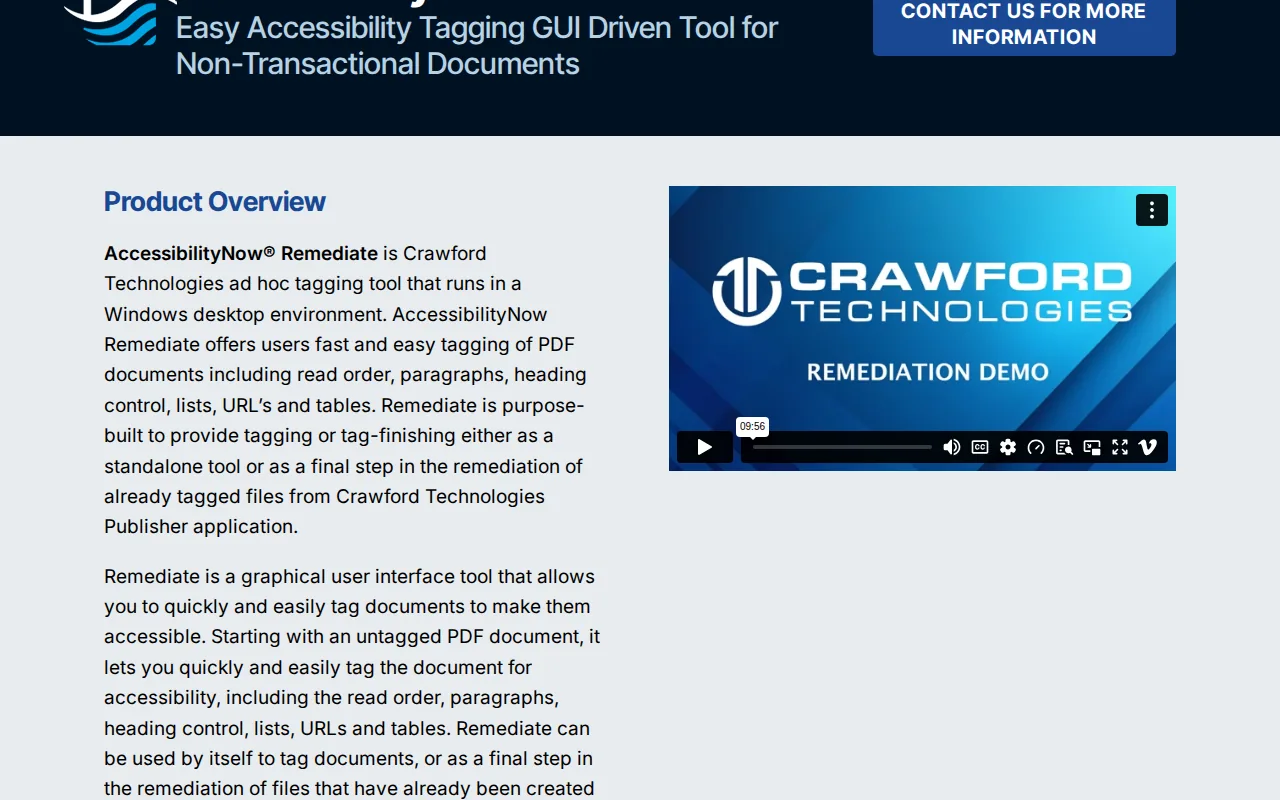
Its advantage is that it can generate a tagged PDF without requiring manual tag placement, speeding up the remediation workflow for smaller batches.
The limitation is that a tagged file from the tool is not a compliance verdict; the output still needs validation against PDF/UA or WCAG, so plan on an additional checker pass for high‑risk documents.
8. Equidox — cloud HTML conversion solution
Equidox is a cloud-based PDF remediation platform that converts inaccessible PDFs into WCAG 2.0 AA compliant HTML rather than returning a remediated PDF. It uses smart detection tools to determine how a document should be structured, with an autotagger that makes initial tagging decisions before a human reviewer confirms them.
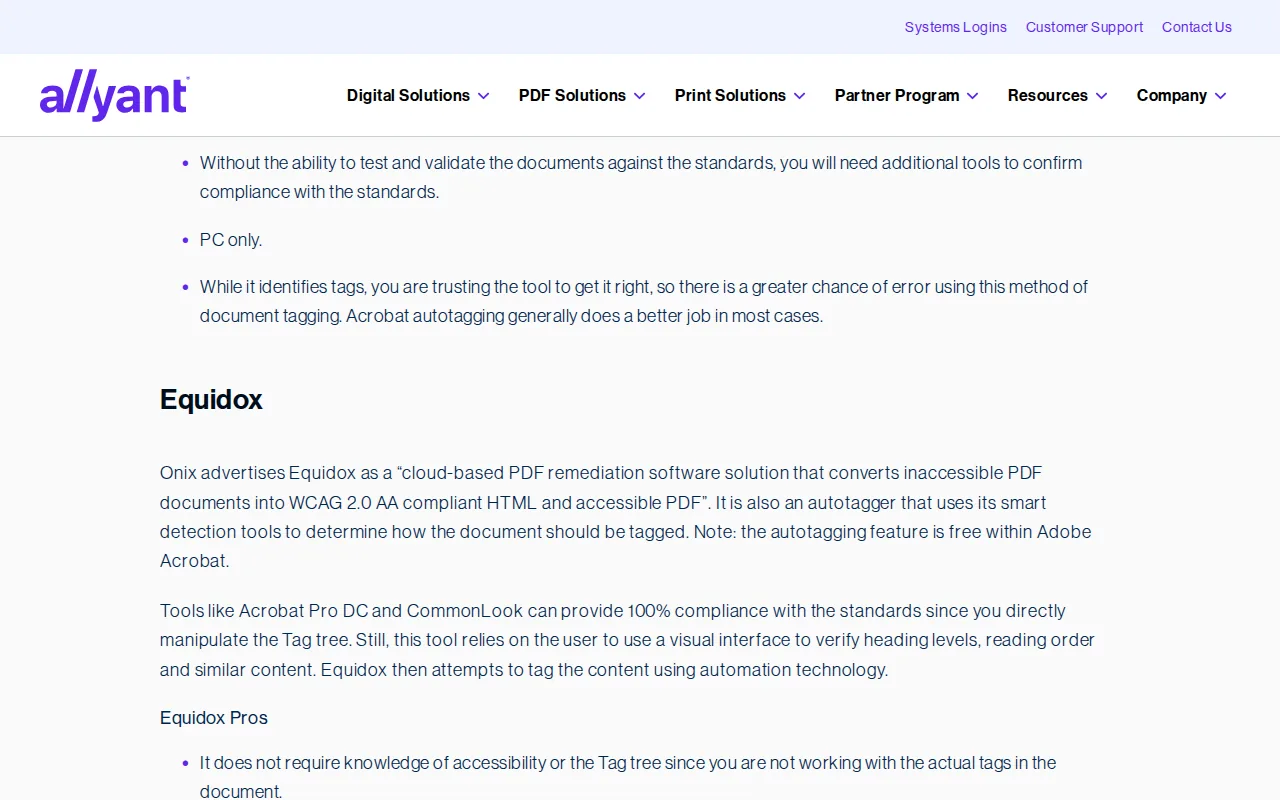
The HTML output approach is worth understanding before you choose it. For organizations whose goal is accessible web content rather than a distributable PDF, Equidox can be a cleaner path. But if your compliance requirement is specifically a tagged PDF (for ADA Title II, Section 508, or PDF/UA), you'll need to evaluate whether HTML output satisfies your particular regulatory context. Pricing is not published publicly, which makes it harder to budget for large projects. Equidox's own guidance notes that validation — confirming a document is actually accessible — often takes longer than remediation itself, and that automated checkers only catch 20–30% of real accessibility issues.
9. Apryse SDK — developer-centric tagging
Apryse SDK is a developer toolkit that adds automated PDF tagging to any application or document workflow. The DataExtraction module calculates reading order, identifies document structure (paragraphs, lists, tables, table of contents), and adds the appropriate PDF/UA tags programmatically — with no manual input needed for the tagging step itself. It's available in C#, C++, Go, Java, and Node.js.
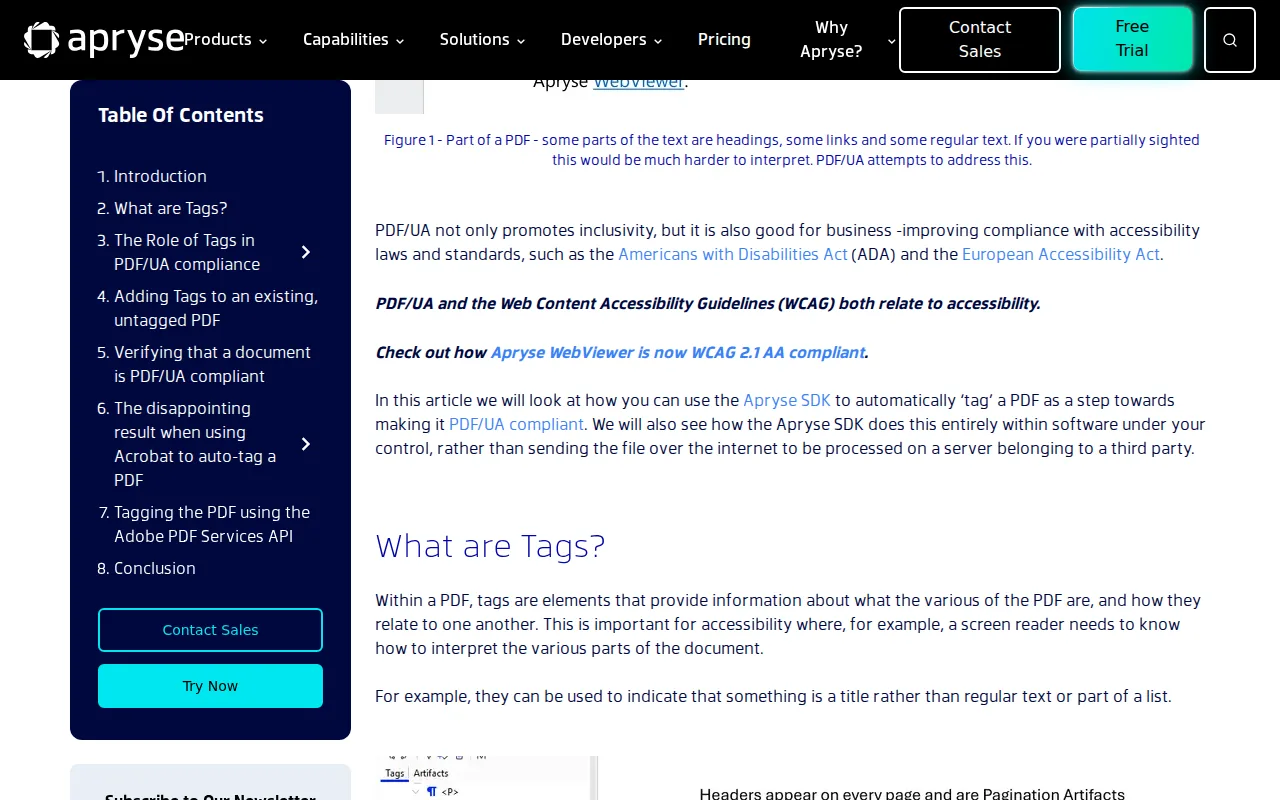
The honest caveat from Apryse's own documentation: some manual steps are still needed, particularly for alt text on images. Automated tagging tools can confirm that an image has alt text, but they can't verify that the text is meaningful. You'll also want to run veraPDF or a comparable checker on the output, since the SDK's autotagger can produce heading hierarchy issues (an H1 followed by an H3, for example) that fail PDF/UA. Apryse is the right choice for development teams embedding compliance into a publishing pipeline, not for non-technical staff doing document-by-document remediation.
Organizations building enterprise AI automation platforms that need PDF accessibility baked into a broader document pipeline will find Apryse's API-first design a natural fit alongside other workflow components.
10. axes4 (axesWord & axesPDF) — lightweight tagger
axesPDF is a standalone Windows application for checking and remediating PDF/UA compliance. It requires that a PDF already has a tag structure before you start — it's a remediation and quality assurance tool, not an initial tagger. The structured test report covers all 89 machine-checkable error conditions from the Matterhorn Protocol in one summary. Most common errors fix with a single click: Unicode mapping corrections, empty tag deletion, artifact tagging, and link annotation descriptions.
The table editing capability is what draws remediation experts to it. Accessibility trainer Dax Castro described his first encounter with axesPDF's table tool as having his mind "literally blown" after spending hours manually reorganizing table header cells in Acrobat. The tool handles complex column header associations that would otherwise require tedious tag tree manipulation. axesPDF also includes a screen reader preview so you can confirm reading order visually before finalizing a document.
The limitation noted in the research: axesPDF provides limited functionality for remediating some accessibility issues, and it's Windows-only. It's best suited for accessibility experts finishing documents that already have a base tag structure, rather than for initial tagging of untagged files. Licensing is an annual subscription; a free trial with watermarked output is available. For a deeper look at how compliance scoring works beyond what any single tool reports, read our guide on designing for outcomes, not scores.
How to choose the right PDF tagging software
The right tool depends on three things: your volume, your team's technical depth, and whether you need a deliverable PDF or can accept HTML output.
- Backlog over 10,000 pages: Accessibility On Demand™ is the only option with published per-page pricing and proven batch throughput: 600,000 pages processed in May 2026, including a 50,000-page single-day run for one customer. PDFix SDK is the on-premises alternative if your data cannot leave your network.
- 100 to 10,000 pages, specialist team: PDFix Desktop Enterprise or CommonLook PDF give experts precise control with batch capability.
- Under 50 documents, manual remediation: Adobe Acrobat Pro DC or PDFix Desktop Pro. Both have strong autotagging and manual tools.
- Free audit only: PDFix Desktop Lite covers every major standard at no cost, on Windows, macOS, and Linux.
- Developer pipeline integration: Apryse SDK or Accessibility On Demand™'s API.
- Source document (Office files): Accessibility Assistant by Omnidocs fixes issues before PDF export.
One thing every tool on this list shares: none of them can prove on their own that a document is fully accessible to a real person using a screen reader. Automated checkers, including the PDF/UA standard's own verification tools, catch structural issues but cannot assess whether alt text is meaningful or whether reading order makes sense in context. A compliance score is the floor, not the proof. For documents where legal defensibility matters, pair automated remediation with spot-check human review. AoD™'s Expert Review (Level 3) tier adds that human review layer when the stakes are highest. For forms specifically, the gap between tagged and actually accessible is worth understanding before you publish. Our guide on form compliance failures covers exactly where automated tagging falls short on interactive documents.
Quick comparison recap; details and caveats remain in the sections above.
FAQ
What does PDF tagging software actually do?
PDF tagging software adds a structural tag tree to a PDF file, marking headings, paragraphs, lists, tables, figures, and reading order, so screen readers and other assistive technologies can interpret the document correctly. Without tags, a screen reader typically reads the file as blank or in the wrong order. Tags are required for WCAG 2.1 AA, PDF/UA (ISO 14289), Section 508, and ADA Title II compliance.
Can I tag a PDF for free?
Yes. PDFix Desktop Lite is permanently free and includes a PDF accessibility validation engine for checking compliance against PDF/UA, WCAG 2.1 and 2.2, and Section 508. Adobe Acrobat's Guided Actions wizard is included with an Acrobat Pro subscription. Both produce a starting tag structure, though neither produces a fully accessible result without additional review. Saved output from free tools typically carries a watermark.
How long does it take to tag a PDF manually?
Manual tagging in Adobe Acrobat Pro commonly takes 15–30+ minutes per page for a complex document. Automated platforms like Accessibility On Demand™ process the same pages in minutes across a full batch. For a 10,000-page backlog, the time difference between manual and automated remediation is measured in months versus days.
What is the difference between PDF/UA and WCAG for tagged PDFs?
PDF/UA (ISO 14289) is the international standard specifically for accessible PDF structure, it defines how tags, reading order, alt text, and metadata must be implemented inside a PDF file. WCAG 2.1 is a broader web content standard that PDF/UA maps to. A PDF that meets PDF/UA will generally satisfy the WCAG 2.1 AA requirements that apply to PDFs under ADA Title II and Section 508. Most serious PDF tagging tools verify against both.
Do automated PDF tagging tools guarantee compliance?
No. No tool on this list produces full compliance on its own, and any vendor claiming otherwise is overstating what automation can do. Automated checkers verify structural elements (tags exist, images have alt‑text attributes, headings are present) but cannot confirm that alt text is meaningful or that reading order makes sense to a real user. AoD™'s Enhanced (Level 2) tier targets a 95%+ WCAG 2.1 AA Compliance Score, verified by the PAC (Axes4) checker, and if a document doesn't clear 95% you're not charged for it; Expert Review (Level 3) adds human review for legally sensitive documents.
What is a PDF accessibility validation tool?
A PDF accessibility validation tool is a software application that checks a PDF against standards such as PDF/UA (ISO 14289) and WCAG. It produces a report of any accessibility issues, allowing you to address them before finalizing the document. Accessibility On Demand™ uses the PAC (Axes4) checker to generate a compliance‑score certificate for each processed document, providing an auditable floor rather than a self‑reported claim.
Conclusion
For most organizations with a real backlog, Accessibility On Demand™ is the usable first move: transparent pricing, batch scale, and a PAC (Axes4) compliance score on every file. If you want to test the output before committing, the first 100 Standard pages are free with no credit card required. Claim your free trial and see what automated remediation actually produces on your documents.
